




Frequently Asked Questions
Results (69)
Click the question to read the answer.
-
Each Registry account has one account admin, who is responsible for enrolling the company in programs (e.g., HWP, batteries, etc.) and adding/removing additional account users.
There is one primary user for each program enrolment. In HWP, the primary user can add/remove users to the HWP program, add program roles (such as generator, carrier or receiver) and receive email notifications (such as when a new invoice is available).
Secondary users can create and edit generator facilities and waste information (generator/AGD roles only), add ECA information and edit contact information (carrier/receiver roles only), and create, edit and sign manifests.
Driver users are specific to the carrier role in HWP. Drivers can create, edit and sign manifests but cannot add ECA information.
Manifest-only users, like driver users, have a reduced level of access limited to viewing, creating, editing and signing manifests. They cannot view, edit, or manage facilities, or view information related to fees.
There is one accounts payable (AP) user per account. An AP user can access and pay invoices, manage saved payment methods and receive email notifications about billing and payments. The AP user can also be contacted by RPRA in the event of a billing or payment question. If the AP user has a primary access level in the HWP registry, they also can reset passwords for active users and add or remove users within the same program. If an AP user has a secondary access level in the HWP, they can create and manage facilities and waste, as well as view, create, or edit manifests.
Account admins can manage password resets for all active users in the account. Primary users are also able to manage password resets, but only for active users within the programs they are the primary user for. If secondary users, drivers or manifest-only users require a password reset, they can reach out to the account admin or primary user to do so.
User Management
Functionalities Admin Primary Secondary AP User Driver* Manifest-only Add/remove users across programs ⚫ Reset passwords for all users across programs ⚫ Add / remove users to same program ⚫ ⚫ ⚫(only if given primary access to the program) Reset passwords for active users within the same program ⚫ ⚫ ⚫(only if given primary access to the program) Receive invoice notifications ⚫ ⚫ ⚫ Create / manage facilities ⚫ ⚫ ⚫ ⚫ Create / manage wastes ⚫ ⚫ ⚫ ⚫ View / create / edit and sign manifests ⚫ ⚫ ⚫ ⚫ ⚫ ⚫ *Available only to accounts where the carrier role is selected. Drivers will only be able to view and action manifests where the company is listed as the carrier -
Follow the steps below to add an AP user to an existing account:
- Log in to the Registry account.
- Go to the Manage Users
- Click on the Set Account Payable User
- Fill in the required details (e.g., name, contact info, etc.).
- Complete the Programs & User Access Levels section
- Check the box: ✅I hereby authorize this user to create/modify data. This confirms the AP user can modify data across all programs.
- Click Save
Note: The new AP user will receive an email invitation to create their password and gain access to the Registry account.
How to change an existing AP user:
- Log in to the Registry account.
- Navigate to the Manage Users
- Click on the Change Accounts Payable User button.
- To select an existing Registry user, type their name or email address in the search field
- Check the box: ✅ I hereby authorize this user to create/modify data. This confirms the AP User can modify data across all programs.
- Click
- To add a new user, click on “Add New User”
- Fill in the required details (e.g., name, contact info, etc.).
- Complete the “Programs & User Access Levels” section.
- Check the box: ✅✅ “I hereby authorize this user to create/modify data.” This confirms the AP user can modify data across all program.
- Click Save
-
Users must designate an accounts payable (AP) user during account set up.
To add an AP user during account set up, follow these steps:
- After adding the Business information and address, click Next.
- After entering the Account Admin information, scroll down.
- Enter the Account Payables User information.
- Check the box: ✅I hereby authorize this user to create/modify data. This confirms the AP User can modify data across all programs.
- Click Next
If you want to assign the account admin as the AP user, check the box labeled:
The Account Admin listed above is the Accounts Payable (AP) User.This will auto-fill the AP User section with the account admin’s information.
See FAQ: 7. What is an accounts payable (AP) user and what can they do in the registry?
-
See sample invoices here.
The three examples included in the PDF are:
- Manifest Invoice – Generator Variant (aggregate fees for multiple manifests over a month; includes a facility-level breakdown)
- Manifest Invoice – AGD Variant (aggregate fees for multiple manifests over a month; includes a company- and facility-level breakdown)
- On-site Waste Activity Invoice (fees for a single on-site waste activity)
Manifest invoices
- Issued on the first day of each month and will include all manifests completed in the previous month. For example, an invoice issued on February 1 will include completed manifests from January 1-31.
- The primary and accounts payable (AP) user of the account will receive an email notification when a manifest invoice is issued. All users except drivers or manifest-only users can access and pay invoices from the Registry homepage.
- While the manifest invoice provides a total fee for each facility, users can see the fee per individual manifest in two ways:
- From the “Invoices & Payments” tab under Manifests with Fees
- From the “Manifests” tab, by navigating to the Closed Manifests section and opening the manifest
- Note: uses can export to excel fee-related details for manifests that have been invoiced.
On-site waste activity invoices
- Issued when the user completes an on-site waste activity report and submits their payment information.
- The primary, accounts payable (AP), and the user who paid for the activity will receive an email notification with payment confirmation.
- All users except drivers or manifest-only users will be able to view paid on-site waste activity invoices from the Registry homepage.
See FAQ: What payment methods are available?
See FAQ: What is an accounts payable (AP) user and what can they do in the registry? -
Account admins have access to all information within a registrant’s account. They can create and assign primary and secondary users’ access to the account, edit and submit reports, and pay fees. They are the only ones who can manage PROs. Account admins can view all activities users undertake. They will also be the recipient of emails from the Registry portal.
Primary users can only assign secondary users’ access to the account, edit and submit reports and pay fees.
Secondary users can only edit and submit reports and pay fees.
Accounts payable users (AP) are able to access and pay invoices, manage saved payment methods, edit and submit reports and email notifications about billing and payments. The AP user can also be contacted by RPRA in the event of a billing or payment question. -
Account admins must add any new, or manage existing, contacts under the program they wish to give them access to in order for the contact to be able to submit a report or pay an invoice. The account admins are the only user than can add a Primary Contact and an Accounts Payable User to a Registry Account.
To Manage contacts on your Registry account, please see the following steps:
- Log into your account.
- Once you are logged in, click on the drop-down arrow in the top right corner and select Manage Users.
- Under Actions, click Edit to update preferences of existing user primary and secondary users.
- Click Add New User to add an additional contact to your account.
- To give reporting access to a Primary Contact, select the program from the drop-down that you would like to grant them access to.
- Click “Set Accounts Payable User” to add an AP contact to your account.
-
Only account admins can designate an accounts payable (AP) user.
-
Yes, a producer, a PRO (producer responsibility organization) on behalf of a producer, or a service provider on behalf of either party, can collect any product or material (including materials or products that are not designated under the Resource Recovery and Circular Economy Act, 2016 (RRCEA)). For example, a battery producer may choose to collect batteries that weigh over 5kg; a tire producer may choose to collect bicycle tires; or a Blue Box producer may choose to collect books.
Products or materials that are not designated under RRCEA regulations cannot be counted towards meeting a producer’s collection or management requirements under RRCEA.
If designated materials are co-collected with materials that are not designated, a person must use a methodology or process acceptable to the Authority to account for those materials. Anyone considering this can contact the Compliance Team to discuss at [email protected] or 833-600-0530.
For example, if bicycle tires are collected at the same time as automotive tires, they must be accounted for separately both when collected and when sent to a processor.
-
An accounts payable (AP) user is responsible for managing the financial aspects of a company’s registry account.
An AP user’s functionality includes:
- Accessing and paying invoices – View, download, and make payments for invoices.
- Managing saved payment methods – Add, update, or remove stored payment options.
- Modifying data across all programs – Modify program-related information as required for billing.
- Receiving billing and payment notifications – Receive email alerts about invoices, payments, and account balances.
- Communicating with RPRA regarding billing or payment questions – Act as the main contact for financial inquiries.
-
The account admin or primary user navigates to the program homepage of which the user requiring a password reset is enrolled in. The account admin or primary user then clicks their username at the top right of the page to show the drop-down list and selects Manage Users.
In the Active Users table, the account admin or primary user clicks Reset Password on the row for the user they want to reset the password for and clicks Confirm.
The user’s password has now been reset. They will receive an email with a password reset link.
Note: the password reset link will expire within 24 hours. If the link expires before the user creates a new password, the account admin or primary must click “Reset Password” again to restart the process.
See the FAQ: Who can reset passwords in the registry?
-
Yes, in October 2022, RPRA has migrated the facility and waste stream data identified below to the new registry to minimize the volume of data users would otherwise have to enter from scratch.
Data that has been migrated into the Registry from HWIN includes:
- Active generators accounts:
- Generator ID
- Company details
- Site location
- Company official / alternate HWIN Administrator details
- Site Details
- Waste Identification (for active wastes):
- Waste Class
- Waste Stream
- Land Disposal Restrictions (LDR) Notification Form
- Fee exemptions
- Carrier and Receiver Environmental Compliance Approval (ECA) information:
- ECA number
- Company Name
- Site location
- Company admin / official information
- Waste codes
*The following data has not been migrated:
- Generator accounts where the generator number or ID begins with ONR or ONF
- Inactive waste streams and facilities
- Manifests
- On-site processing, storage and disposal information
- LDR questionnaires (only LDR notification forms will be migrated)
- Financial information (including account balances, payment information)
- Document attachments (such as copies of Environmental Compliance Approvals)
Note: while some recently expired generator accounts might have been migrated to the registry, users should have ensured that their data in the HWIN system is accurate and up to date ahead of the migration in October to ensure their data is accessible in the registry. This may have included reactivating inactive waste streams and facilities in HWIN in order for them to be migrated to the registry.
-
The mobile app supports offline reporting. The mobile app will be inaccessible if the user has logged out of the mobile app and the user is offline, as you need a network connection to log into the app. However, if the user stays logged into the mobile app, they will be able to use the app offline. It is advised that drivers/users stay logged into the app or log in before going out of an internet zone, to ensure they can always use offline mode.
Information that is reported through the mobile app while offline will be replicated in the desktop application (once the user has internet connection again) because of the live synchronization between the two platforms. See our demo video that highlights this functionality: https://www.youtube.com/watch?v=0fN2DPzGc9I&t=8s.
To note: users can stay logged into the mobile app for 72 hours.
-
Account admins can manage password resets for all active users in the account. Primary users are also able to manage password resets, but only for active users within the programs they are the primary user for. If secondary users require a password reset, they can reach out to the account admin or primary user to do so.
-
Yes, designating an AP User is required for account creation. This ensures financial responsibilities are clearly assigned.
-
Only hazardous waste from facilities and waste streams that are set up in the new registry can be shipped, stored, processed, or disposed as of January 1, 2023. Generators, carriers, and receivers must have an account in the new registry to be listed on a manifest, create, edit or sign manifests, or report on-site waste activities, among other activities.
Creating an account is easy and straightforward. To make it easier, have the generator numbers, HWIN usernames and Environmental Compliance Approval (ECA) numbers for your business readily available.
The HWP Registry and the mobile app were built and tested by RPRA staff, ministry staff, industry stakeholders and external technology vendors to be efficient and user-friendly. To set up an account, follow the steps below:
- Go to registry.rpra.ca
- Click the Create New Account link if you do not already have a registry account
- Enter your business contact information
- Enroll in the Hazardous Waste Program Registry as a generator, carrier, receiver or Authorized Generator Delegate (AGD). An email will then be sent with instructions to activate your account
Check out these step-by-step instructions for account creation and retrieving HWIN data.
Carriers and receivers can link existing environmental compliance approval (ECA) numbers to their account. Check out this “how-to” video to link your ECA numbers.
If you have been authorized to act as a full delegate, you should have the generator numbers and HWIN usernames for each of your clients. If acting as a partial delegate, please reach out to new clients to ensure they have their accounts and facilities set up.
-
A public collection site must be readily accessible to the public and accept designated used materials during regular business hours. Publicly accessible collection sites and events appear on the Where to Recycle map. Note: In October 2026, the Where to Recycle map moved from rpra.ca to OntarioRecycles.ca, RPRA’s website to keep the public informed about the circular economy and recycling in Ontario.
A private collection site (e.g. office or school that collects designated materials) does not need to be publicly accessible. Private collection sites do not appear on the map.
Read this related FAQ: What does it mean for a collection site to be readily accessible to the public?
-
The mobile app will be inaccessible if the user has logged out of the mobile app and the user is offline, as you need a network connection to log into the app. If the user stays logged into the mobile app, they will be able to use the app offline. It is advised that drivers/users stay logged into the app, or log in before going out of an internet zone, to ensure they can always use offline mode.
-
In the HWP Registry, one company account will be set up to manage all of that company’s facilities. The company account will have one account administrator and as many additional users as you choose. Each user will have their own username and password.
Once you create an account for your company, any user associated with the account can setup and manage all facilities under that one account. More information on account types and how to setup an account, will be made available by RPRA closer to November.
Note: As a generator, if you fully delegate to a service provider (also referred to as an authorized generator delegate or AGD), you will not have to use the HWP Registry. The AGD will set up the facilities that you have fully delegated to them under their AGD account.
If you partially delegate to a service provider, you will need to set up your registry account yourself, including initial set up of your facilities and associated waste stream information migrated from HWIN. Once you have set up a facility and identified a service provider as a partial AGD through the registry system, the service provider can register and edit your waste stream information on your behalf.
-
As of January 1, 2023, generators, carriers, and receivers of industrial hazardous or liquid waste are required to report their hazardous waste management activities and pay fees through RPRA’s digital Hazardous Waste Program (HWP) Registry or HazTrack mobile app and instead of through HWIN (the Hazardous Waste Information Network).
The HWP Registry is open since November 15, 2022, to allow generators or their delegated service providers (also referred to as an “authorized generator delegate”) to create an account and add facilities and waste streams.
HWIN pre-paid balances have not been transferred to the HWP Registry. The regulated community no longer has access to HWIN to manage their accounts and pay fees associated with activities from 2022 or earlier.
If necessary, the ministry will contact generators to address balances remaining in HWIN pre-paid accounts from 2022.
-
HWIN pre-paid balances have not been transferred to the HWP Registry. The regulated community no longer has access to HWIN to manage their accounts and pay fees associated with activities from 2022 or earlier.
If necessary, the ministry will contact generators to address balances remaining in HWIN pre-paid accounts from 2022. The Ministry can be contacted at [email protected]
Read RPRA HWP Registry Fees Schedule
See FAQ: Will I pay my fees using a prepaid account like in HWIN?
-
Yes. Carriers and receivers are required to create an account in the HWP Registry and link their active Environmental Compliance Approval numbers to their Registry accounts. Starting January 1, 2023, businesses and institutions regulated by the Hazardous Waste Program are required to report information through the Registry instead of through HWIN. Only carriers and receivers who have Registry accounts will be able to be listed on manifests.
Carriers can find training resources for account set up here
Receivers can find training resources for account set up here
-
Starting January 1, obligated parties are required to report on waste management activities, including manifesting, through the online HWP Registry instead of reporting through the Ministry of the Environment, Conservation and Park’s Hazardous Waste Information Network (HWIN) and instead of using paper manifests.
The regulated community no longer has access to HWIN to manage their accounts and pay fees associated with activities from 2022 or earlier.
If necessary, the ministry will contact generators to address balances remaining in HWIN pre-paid accounts from 2022.
-
Yes, all users who have an active waste stream associated with an active facility and have not delegated account creation to an Authorized Generator Delegate are required to create an account in the HWP Registry. Account creation consists of entering your company name and contact information and creating usernames and passwords. Once you create an account in the new registry, you will be able to migrate all of your existing generator numbers from HWIN (and associated facility and waste information) to your one company account.
If you are a generator who is fully delegating to an Authorized Generator Delegate (AGD), you will not have to create a Registry account. In that case, the AGD will manage your facility and waste information under their own Registry account.
If you are a generator who doesn’t have an active waste stream associated with an active facility, there is no need to create a registry account or delegate an AGD to do so on your behalf.
See FAQ: Will HWIN users’ data be migrated to the HWP Registry?
See FAQ: What is delegation?
-
The mobile app, RPRA HazTrack, is available for download through the Apple APP Store and Google Play Store since November 15, 2022, the same day that the HWP Registry launched for account creation. Users have to first create an account in the HWP Registry before they can login to the app. Other app functionalities, such as manifesting, will not be available until January 1, 2023.
As from January 1, the app will allow generators, carriers and receivers to:
- View and sign manifest
- Create new manifests (“parts A and B”)
- Complete manifests (“part C”)
- Including accepting or refusing wastes
- Make corrections to the manifest
Users of the web-based application for the HWP Registry will use the same username and password to sign into the mobile application.
-
No. All secondary users of the account will be able to access all facilities in the account. Once you create an account for your company, any user associated with the account can setup and manage all facilities under that one account.
The HWP Registry is equipped with a robust search and filter functionality to make it easier for users within the account to locate and manage the facilities they are responsible for
-
RPRA is the regulator designated by law to oversee the operation and wind up of current waste diversion programs under the Waste Diversion Transition Act, 2016. The Authority provides oversight, compliance, and enforcement activities with respect to regulations made under the Resource Recovery and Circular Economy Act, 2016.
-
No, products or packaging designated as Hazardous and Special Products (HSP) are not obligated under the Blue Box Regulation. For example, primary packaging for paints and coatings are HSP and therefore not obligated as Blue Box materials.
Some packaging for HSP products may still be obligated. For example, the packaging that contains an oil filter is obligated as Blue Box materials.
Consult the HSP Regulation or the Compliance and Registry Team for further information.
-
As required under the regulation, Project Leaders, Owners and Site Operators are required in prescribed circumstances to use the Excess Soil Registry to file notices for certain Project Areas, Reuse Sites, and Residential Development Soil Depot sites where Excess Soil is generated, transported, temporarily placed, and deposited. More information on the types of projects and sites required to file a notice can be found by referring to the Ministry’s Handout on Excess Soil Registry.
Project Leaders, Owners and Site Operators can also assign an Authorized Person to file a notice and pay fees in the Registry on their behalf.
Role definitions
Project Leader
In O. Reg. 406/19, the Project Leader means, in respect of a project, the person or persons who are ultimately responsible for making decisions relating to the planning and implementation of the project.
The Project Leader is responsible for ensuring that a Project Area Notice is filed if required. They must always complete and sign the required declarations that are a component of the notice being filed .
Owner
A person who owns the land, with an interest upon whose credit, behalf, privity or direct benefit an improvement is made to the premises.
For a Reuse Site or a Residential Development Soil Depot, an Operator may complete all aspects of the relevant notice filing in the Registry.
Operator
A person who has the charge, management, or control of a site. An Operator may be an owner of a property, lease a property or be contracted to operate a Project Area Site, Reuse Site or Residential Development Soil Depot.
For a Reuse Site or a Residential Development Soil Depot, an Operator may complete all aspects of the relevant notice filing in the Registry.
Authorized Person
A person who is authorized by the Project Leader, Owner, or Operator of a site, to complete a notice filing and pay fees on their behalf.
The Authorized Person can initiate a notice in the Registry if permitted to by the Project Leader, Owner, or Operator of a site, and can complete all required notice information and pay applicable fees on their behalf.
Qualified person (QP)
QPs under the regulation have the same meaning as section 5 and 6 of Ontario Regulation 153/04 (O. Reg. 153/04).
Section 5 of O. Reg. 153/04 defines a Qualified Person as professional engineers and geoscientists – these are the persons who may oversee or conduct environmental site assessments or complete certifications in a Record of Site Condition. Section 6 of O. Reg. 153/04 sets out the requirements for Qualified Persons who conduct or oversee a risk assessment.
A QP may be designated as an Authorized Person by the Project Leader or by an Owner/Operator to file a notice to the Excess Soil Registry on their behalf.
-
A collection site is required to:
- accept all used materials that are designated under the program the collection site operates under*,
- accept materials dropped off free of charge, and
- accept materials dropped off during regular business hours.
The amount and type of materials a collection site must accept varies by which program they operate under.
*More information on what materials must be accepted for each recycling program can be found here.
Note: In October 2026, the Where to Recycle map moved from rpra.ca to OntarioRecycles.ca, RPRA’s website to keep the public informed about the circular economy and recycling in Ontario.
-
Under the Blue Box Regulation, blue box product packaging includes:
- Primary packaging is for the containment, protection, handling, delivery and presentation of a product at the point of sale, including all packaging components, but does not include convenience packaging or transport packaging (e.g., film and cardboard used to package a 24-pack of water bottles and the label on the water bottle).
- Transportation packaging which is provided in addition to primary packaging to facilitate the handling or transportation of one or more products such as a pallet, bale wrap or box, but does not include a shipping container designed for transporting things by road, ship, rail or air.
- Convenience packaging includes service packaging and is used in addition to primary packaging to facilitate end users’ handling or transportation of one or more products. It also includes packaging that is supplied at the point of sale by food-service or other service providers to facilitate the delivery of goods and includes items such as bags and boxes that are supplied to end users at check out, whether or not there is a separate fee for these items.
- Service accessories are products supplied with a food or beverage product and facilitate the consumption of that food or beverage product and are ordinarily disposed of after a single use, whether or not they could be reused (e.g., a straw, cutlery or plate).
- Ancillary elements are integrated into packaging (directly hung or attached to packaging) and are intended to be consumed or disposed of with the primary packaging. Ancillary elements help the consumer use the product. Examples of ancillary packaging include a mascara brush forming part of a container closure, a toy on the top of candy acting as part of the closure, devices for measuring dosage that form part of a detergent container cap, or the pouring spout on a juice or milk carton.
-
As per page 10 of the Datacall User Guide, all IC&I tonnes must be removed from reported tonnages and from reported costs. Page 10 of the User Guide specifies that business improvement areas (BIA), are to be reported as IC&I; however, apartments above these businesses can be included as residential.
We advise to keep a record of how the allocation was calculated. If you would like additional assistance with calculating the IC&I rate on your BIA, contact [email protected].
-
The Manage PRO option will appear on the dashboard below your list of supply data reports when your supply data reporting is complete and if you have management requirements. If your supply data reporting is below the supply exemption threshold you will not have management requirements, and therefore not need to assign a PRO to assist with your obligations.
Also note that Account Admin are the only portal users that can manage your PRO’s responsibility, so this widget is not viewable to primary and secondary users.
-
If you select credit card as your method of payment, this will be done through your Registry account.
Follow these steps to complete your payment:
Follow these steps to complete your payment:
- In the payment method section of the Registry, select credit card as your preferred method.
- Enter your credit card details.
- Click PAY and the payment will process automatically.
Please note:
- Invoices are due on receipt.
- Invoices are in CAD funds and payments must be sent in CAD.
- Payment will be reflected in your Registry account once your transaction has been processed.
- Registrants can save a credit card as their preferred payment method.
- Hazardous Waste Program (HWP) registrants can enrol in Manifest Autopay with credit card as their saved payment method.
If you have questions about fee payment, contact our Compliance and Registry Team at [email protected] or call 1-833-600-0530.
How do I pay my fees to RPRA by cheque?
If you select cheque as your method of payment, follow these steps to complete your payment:
- Make your cheque payable to “Resource Productivity and Recovery Authority”
- Enter your Invoice Number on the memo line of the cheque
- Send your cheque to:
- Resource Productivity Recovery Authority
- PO Box 46114, STN A
- Toronto, ON
- M5W 4K9
Please note:
- Invoices are due on receipt.
- Invoices are in CAD funds and payments must be sent in CAD.
- It may take 2-4 weeks for your payment to be reflected in your Registry account due to mail and cheque processing times.
If you have questions relating to fee payment, contact our Compliance and Registry Team at [email protected] or call 1-833-600-0530.
-
If you select cheque as your method of payment, follow these steps to complete your payment:
- Make your cheque payable to “Resource Productivity and Recovery Authority”
- Enter your Invoice Number on the memo line of the cheque
- Send your cheque to:
- Resource Productivity Recovery Authority
- PO Box 46114, STN A
- Toronto, ON
- M5W 4K9
Please note:
- Invoices are due on receipt.
- Invoices are in CAD funds and payments must be sent in CAD.
- It may take 2-4 weeks for your payment to be reflected in your Registry account due to mail and cheque processing times.
If you have questions relating to fee payment, contact our Compliance and Registry Team at [email protected] or call 1-833-600-0530.
-
Under the Blue Box Regulation, there are three types of exemptions that apply to producers:
- Based on a producer’s gross annual revenue,
- based on the weight of Blue Box materials supplied into Ontario, and
- for producers of newspaper
1. Any producer whose gross annual Ontario revenue from products and services is less than $2,000,000 is exempt from all producer requirements under the regulation. In the case where the producer is a franchisor, it is the gross annual revenue of the system that is used to determine if an exemption applies.
Any producer who meets the exemption must keep any records that demonstrate its gross annual Ontario revenue is less than $2,000,000 in a paper or electronic format that can be examined or accessed in Ontario for a period of five years from the date of creation.
See our FAQs to understand what revenues municipalities and registered charities should consider when determining whether or not they are an exempt producer.
2. A producer who is above the revenue-based exemption level may still be exempt from performance requirements (collection, management and promotion and education) if their supply weight is below the exemption levels outlined in the table below.
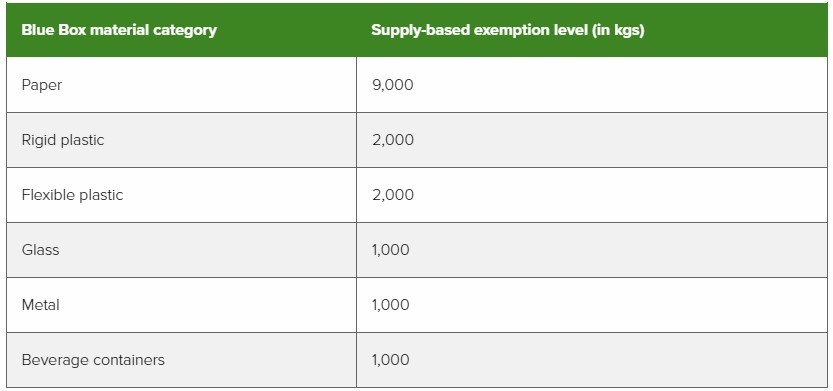
If a producer’s annual revenue is more than $2,000,000 and supply weight in all material categories is less than the tonnage exemption threshold, the producer is required to register and report.
If a producer’s annual revenue is more than $2,000,000 and supply weight in at least one material category is above the tonnage exemption threshold, the producer is required to meet all obligations (registration, reporting, collection, management, and promotion and education). However, producers are only required to meet their minimum management requirement in material categories where they are above the exemption level.
3. As outlined in the amended Blue Box Regulation (released April 19, 2022), producers of newspapers may be exempt from collection, management, and promotion and education requirements. For the purposes of this exemption, “newspapers” includes newspapers and any protective wrapping and any supplemental advertisements and inserts that are provided along with the newspapers.
For a producer to qualify for this exemption, newspapers must account for more than 70% of their total weight of Blue Box materials supplied to consumers in Ontario in a calendar year. If exempt, the producer is not required to meet collection, management, and promotion and education requirements for all Blue Box materials they supply in Ontario in the following two calendar years.
A producer whose newspaper supply accounts for 70% or less of their total weight of Blue Box materials is subject to collection, management, and promotion and education requirements for all Blue Box materials they supply in Ontario.
-
Full delegation: when generators hire service providers to do all the facility and waste stream management, reporting and fee payment in the registry on their behalf, and they never have to set up accounts or use the registry.
Partial delegation: when generators want to set up their own account in the registry and pay their own fees, they can still delegate facility and waste stream management and other reporting activities to a service provider.
Please note delegation is not needed for a service provider to create manifests for your facility. Delegation is needed only for a service provider to help manage a generator’s facility and waste stream information (e.g., register or edit waste streams) or sign off on manifests on the generator’s behalf.
Comparison of delegation options
Function Full delegation Partial delegation No delegation Create my own generator registry account and register my own facilities ⚫ ⚫ Register my own wastes ⚫ ⚫ Create my own manifests ⚫ ⚫ Sign my own manifests (including corrections) ⚫ ⚫ Have an AGD register my facilities ⚫ Have an AGD register my wastes ⚫ ⚫ Have 2 or more AGDs register and manage waste at the same facility ⚫ Have an AGD or other service provider create my manifests ⚫ ⚫ ⚫ Have an AGD sign manifests on my behalf (including corrections) ⚫ ⚫ Note: If you fully delegate to a service provider, you will not have to use the HWP Registry -
RPRA collects 13% Harmonized Sales Tax (HST) on applicable fees. This requirement is based on a ruling received from the Canada Revenue Agency (CRA), which determined that HST must be charged on fees collected under the Resource Recovery and Circular Economy Act, 2016 (RRCEA).
HST applies to all RRCEA producer responsibility programs, as well as the Excess Soil and Hazardous Waste programs.
Invoices issued before January 1, 2023, were amended to reflect HST. Registrants can access amended invoices in their Registry accounts under the Invoices tab, where the HST amount and the amended invoice date are shown.
Important notes:
- On the amended invoices there have been no changes to the Invoice Total and registrants will not be required to pay any additional monies to RPRA for past invoices.
- Registrants may be able to claim input tax credits for the HST collected on RPRA fees, for both the amended invoices and new invoices issued January 1, 2023, onwards. However, RPRA is not in a position to provide tax advice and suggests you consult your internal or external accountants to seek their counsel.
- All new invoices issued effective January 1, 2023, will contain appropriate information identifying the amount of the HST and other relevant details. These invoices will also be displayed under the “Invoices” tab in a registrants’ Registry account.
-
A Verifier can be an individual, either an employee of the business or a hired third-party (including a PRO), who has one of the following designations and is not the same person who prepared the supply report:
- CPA (Chartered Professional Accountants) in Canada or CPA (Certified Public Accountant) in the US
- ACCA (Association of Chartered Certified Accounts) Qualification
- CIA (Certified Internal Auditor)
- CPB (Certified Professional Bookkeeper) in Canada
- RPA (Registered Professional Accountant) in Canada
-
1. You will need the following information to create a Registry account:
- CRA Business Number (BN)
- Legal Business Name
- Business address and phone number
- Address of where you work (if different from the main office)
- Contact information for your additional users
2. You will need to provide the address and phone number for each site where you retread and/or process tires.
3. You will need to identify which of the following tire categories are applicable to your business:
- Large tires (over 700 kg)
- Other tires (700 kg or less)
4. If you are a processor, you will also need to identify which of the following materials are applicable to your process:
- Crumb rubber
- Tire derived mulch
- Tire derived aggregate
- Tire derived rubber strips and chunks
- Fluff/fibre
- Tire derived steel/metal
- Other
If your business performs multiple roles (e.g., hauler and processor), you only need to create one registry account and identify the additional roles. If you are a producer, use your producer account to add roles.
-
Registry fees cover the Authority’s costs to build, deploy and maintain the Registry, and to provide ongoing support to Registry users. As an administrative delegated authority of the Government of Ontario, the Authority does not receive any government funding and funds its operations through fees charged to regulated parties. The Authority operates on a cost-recovery basis.
-
Yes. The following resources can support you with submitting to the Datacall:
-
The minimum browser requirements are:
- Macintosh: Netscape 6.0+, Firefox 1.0+, Mozilla 1.0+, Opera 8.5+
- Windows: Internet Explorer 6.0+, Firefox 1.0+, Netscape 6.0+, Mozilla 1.0+, Opera 8.5+
- Linux: Netscape 6.0+, Firefox 1.0+, Mozilla 1.0+
- JavaScript and Session Cookies must be turned on
Please note that Firefox is the preferred browser for the Datacall. Some users have identified compatibility issues with Google Chrome and it is recommended to avoid using it as your browser as the view will have missing components.
If this does not fix the problem, contact [email protected].
-
Yes. A PDF feature is available on the Datacall main page. This feature is offered throughout the entire Datacall submission period, including after the Datacall deadline. You can go back to access previous Datacall years and download the PDF’s.
If there are several users downloading PDFs at the same time, your PDF copy will be emailed to you typically by the end of the day. Select the sections you would like sent and enter an email address to receive the PDF files.
-
Your previous years data is visible in sections 2, 3, 4, and 7. Otherwise, you can access your previous data by logging into your previous Datacall, using the following link: https://rpradatacall.ca/datacall2020/
User login information will be the same as what is used for the current year Datacall.
-
Yes. Users are able to carry over the number of households from Section 2.1 Populations and Households to various contracts in Section 3. In Section 3 there will be a question (In the Blue Box Tonnes tab and the Materials Collected sub-tab) asking if all of the households in your program receive the same level of service under this contract.
If YES is selected, the numbers from Section 2.1 are automatically imported.
If the answer is NO, then household data is not imported and this section will have to be completed manually.
-
The Datacall User Guide defines a set out limit as no additional bags/bins/carts being allowed beyond the limit, even if there is a bag tag program or additional garbage fees for extra bags.
-
Collection
- Public or municipal contract-based collection of or from:
- Permanent or seasonal single and multi-family households (including rental, cooperative or condominium residential)
- Multi-family households are defined as residential units in buildings with six or more units (per O.Reg 103/94)
- Senior citizen residences and long-term care facilities
- Public and secondary schools collected along a residential collection route, concurrently with residential tonnes
- Permanent or seasonal single and multi-family households (including rental, cooperative or condominium residential)
- The residential component of publicly-operated (municipally-owned or contracted) drop-off depots, at dedicated depots, or depots at landfill sites
- Public space recycling containers, if they are collected on a residential collection route concurrently with residential tonnes (tonnes from special events/festivals are not eligible)
- Municipally owned and operated campgrounds can be reported as residential only if there are permanent households or seasonal households, i.e. a trailer park (weekend campgrounds are
considered IC&I)
Processing
- Public or municipal contract-based collected materials from permanent or seasonal single and multi-family households (including rental, cooperative or condominium residential)
- Collected materials from senior citizen residences and long-term care facilities where the materials are processed at a municipally-owned or contracted MRF
- Public or municipal contract-based collected materials from public and secondary schools, collected during residential collection
- Collected materials from public and secondary schools where the materials are processed at a municipally-owned MRF
- Residential components of publicly-operated (municipally-owned or contracted) drop-off depots, located either at dedicated depots or landfill sites
- Public space recycling containers that are comingled with residential Blue Box materials (e.g.
bins in public parks) collected along a residential route
To learn more, read pages 9 and 10 of the Datacall User Guide.
- Public or municipal contract-based collection of or from:
-
No. A complete list of Blue Box materials is included in the Datacall User Guide Appendix F.
Note: Blue Box materials are Printed Paper and Packaging (PPP). Report bulky rigid plastics as Other Recyclables in Section 3.3: Non-Blue Box Services.
-
As per page 10 of the Datacall User Guide, public space recycling containers that are comingled with residential Blue Box materials (e.g. bins in public parks) collected along a residential route, are eligible for Blue box funding. The bins do not have to be permanently placed, so long as they are not special event or temporary bins, they are eligible for funding.
-
As per page 9 of the Datacall User Guide, public and secondary schools collected along a residential route, concurrently with residential tonnes are eligible for funding.
If a separate or dedicated collection run is made, it is no longer eligible for funding.
-
Under the Batteries, EEE, HSP, and Tire Regulations, a consumer is any end user of a product. A consumer includes an individual who obtains the product for the individual’s own use and a business that obtains the product for the business’s own use.
See our FAQ to understand “Who is a consumer under the Blue Box Regulation?”
-
If you are interested in learning more about becoming an AGD, please reach out to RPRA at [email protected].
In terms of setting up your registry account, when creating your account in the HWP Registry, on the “Role Selection” page, users will be able to select the role (or roles) that apply to them, including acting as an authorized generator delegate (AGD).
Prior to creating an account, selecting the AGD role and submitting information to the registry on your clients’ behalf, you will need to have an agreement in place with your client(s). You should communicate with your generator clients about their ability to delegate to a service provider and prepare your staff to answer questions about delegation.
Requirements for written authorizations to delegate, are set out in the ministry’s revised “Registration Guidance Manual for Generators of Liquid Industrial and Hazardous Waste”
-
Yes, users will be able to access, download and print a PDF version of their manifest from the HWP Registry.
-
Yes. Registry fees cover RPRA’s costs to build, deploy and maintain the Registry, and to provide ongoing support to Registry users. As an administrative authority of the Government of Ontario, RPRA does not receive any government funding and recovers its costs through fees charged to regulated parties. The Registry fees are unrelated to the fees your service provider may charge for managing your waste and for reporting on your behalf.
-
In the HWP Registry, users will be able to access, download and print a PDF version of their manifest. RPRA has worked with Transport Canada to ensure the printable PDF complies with the Transportation of Dangerous Goods (TDG) requirements in most cases.
For more information about your TDG requirements, visit: https://tc.canada.ca/en/dangerous-goods/transportation-dangerous-goods-canada.
-
No. If a facility is closed and/or will not be generating hazardous or liquid industrial waste in 2023 and beyond, you do not need to register the facilities in the HWP Registry.
Also, data from inactive facilities in HWIN will not be migrated to the HWP Registry.
See FAQ: Will HWIN users’ data be migrated to the HWP Registry?
-
If you are only providing auditing and training services, you are not considered an AGD under the regulation. However, a generator’s account administrator can add you as a user in the HWP Registry where you can access the registrant’s reporting information. This will support your audit, consulting, and training services. You would be an authorized generator delegate if you are doing reporting on the generator’s behalf under the regulation: registering facility or waste stream information or signing manifests as the generator.
See FAQ: what is delegation?
-
The Hazardous Waste Program (HWP) Registry is unable to issue separate invoices for different facilities managed under one account. However, users can export to excel fee-related details for manifests that have been invoiced and sort it by facility.
Monthly invoices will include the applicable fees for manifests completed during the previous month and will break fees down by facility. If you need more details about facility-specific activities, you can find that information directly in the Registry.
See FAQ: What information is included on an invoice for HWP Registry fees?
See FAQ: Can I submit a partial payment for only the facilities I manage?
See FAQ: Where can I find past invoices in the Registry? -
Yes, a generator can sign a manifest on a carrier’s device. This may occur if the generator does not have their own device to sign off on at the time of waste pick-up or if the signee is not a user in their company’s Registry account.
This quick reference guide outlines the steps for obtaining the generator signature on the carrier’s device.
-
RPRA has developed a library of resources to support Registry users navigate the online system and meet their regulatory requirements. RPRA consistently adds to this pool of resources based on upcoming requirements, emerging needs, and questions we receive from stakeholders.
View Registry resources for each program:
-
RPRA has developed an Excess Soil Registry Resources webpage to help users navigate the online system and complete common activities such as account creation, filing and searching for notices. Resources include step-by-instructions and walk-through videos.
-

-
Producers are obligated parties under the Resource Recovery and Circular Economy Act and are ultimately responsible for their data submitted through RPRA’s Registry. Producers can choose to contract with an external consultant to support their data submission, but third parties have limited permissions in the Registry as they are not regulated parties.
A producer can choose to assign a primary or secondary user profile in their Registry account to an external consultant. An external consultant may submit supply data reports and/or pay registry fees on the producer’s behalf.
External consultants cannot submit and/or sign registration, executive attestations, account admin changes or supply data adjustment documentation on behalf of a producer. External consultants cannot be account admins, nor can they manage a PRO within the Registry on behalf of a producer.
-
If you need to change an email address in your registry account, please contact the Compliance Team at [email protected]. Registry users cannot update email addresses themselves; this can only be completed by RPRA.
-
Reporting for 2022 waste shipments through the prior HWIN system is closed.
Users can pay outstanding fees or request refunds related to 2022 balances by logging into HWIN.ca. For questions related to outstanding fees and refunds email [email protected]
-
When your hazardous waste program (HWP) manifest invoice total is $500 or less, the default payment methods are automatically set to credit card and direct debit.
This feature aims to simplify transactions for smaller amounts and ensure a smoother payment process.
As shown in the image below, if your HWP invoice is $500 or less:
- The payment methods available will be set to credit card and direct debit.
- The user then selects either credit card or direct debit as the payment method.
- Click Next, enter the banking or credit card information and click Pay.

If your company is unable to pay an invoice by credit card or direct debit, please contact RPRA’s Compliance and Registry Team at [email protected] or call 1-833-600-0530.
-
You can request a refund by going to the “Invoices & Payments” tab and clicking the “Request Refund” button next to any invoice with a negative balance.
How refunds are issued
Generally, refunds are sent back via the original payment method.
Refunds will NOT be returned to the original payment method when:
- The credit card used for payment has expired
- The bank account used for direct debit payment is no longer in use
- The payment was made by cheque, EDI, or EBP
In these cases, the refund will be sent via EFT.
You can choose to apply the refund as a credit toward unpaid orders.
- You may request the refund be sent to your saved bank account (direct debit) or provide new bank account details for EFT.
Already requested a refund?
If a refund has already been requested and a user clicks the “Request Refund” button, they will see this message: A refund has already been requested for invoice 000XXXX on XX Date. We are currently processing your request.
-
Users can add a credit card or direct debit as a saved payment method in the registry for easier payments and added convenience.
See the steps below to add, change or remove a saved payment method.
Add a saved payment method
- Log in to your registry account.
- Go to the Invoices & Payment tab.
- In the Saved payment method section, click Add payment method.
- Choose the payment method and click Next.
- For credit card, enter your card information.
- For direct debit, enter your banking information.
- Click Save.
Change a saved payment method
- Log in to your registry account.
- Go to the Invoices & Payment tab.
- In the Saved payment method section, under Action, click Change.
- Choose the payment method, then click Next.
- For credit card, enter your card information.
- For direct debit, enter your banking information.
- Click save.
Remove a saved payment method
To remove a saved payment method for Credit Card and Direct Debit, follow these steps:
- Log in to your registry account.
- Go to the Invoices & Payment tab.
- In the Saved payment method, under Action, click Remove.
- Choose one of the following:
- Remove to delete payment method.
- Remove and add new to replace it with another payment method.
- If you choose Remove and add new, follow these steps:
- For Credit Card, enter your card information.
- For Debit Card, enter your banking information.
- Click Save.
Note: Only generators and authorized generator delegates (AGD) in HWP can enrol in Manifest AutoPay.
See FAQ: What is manifest AutoPay?
-
As of October 2026, the Where to Recycle map moved from rpra.ca to OntarioRecycles.ca, RPRA’s new website to keep the public informed about the circular economy and recycling in Ontario.
This change supports RPRA’s mandate of making information about resource recovery and waste reduction in Ontario accessible to the public.
For convenience, there are links throughout this website directing users to the map on Ontario Recycles. Learn more about Ontario Recycles here.