




Frequently Asked Questions
Results (36)
Click the question to read the answer.
-
When paying fees to RPRA, you can select from one of the following payment methods:
- Direct debit (also known as bank withdrawal)
- Credit card
- Electronic data interchange (EDI; also commonly known as ACH or EFT)
- Electronic bill payment
- Cheque
For instructions on how to submit payment by the method you chose, read one of the following FAQs:
- How do I pay my fees to RPRA by credit card?
- How do I pay my fees to RPRA by direct debit?
- How do I pay my fees to RPRA by electronic bill payment?
- How do I pay my fees to RPRA by cheque?
- How do I pay my fees to RPRA by electronic data interchange (EDI)?
Please note:
- Invoices are due on receipt.
- Invoices are in CAD fund and payments must be sent in CAD.
-
As required under the regulation, Project Leaders, Owners and Site Operators are required in prescribed circumstances to use the Excess Soil Registry to file notices for certain Project Areas, Reuse Sites, and Residential Development Soil Depot sites where Excess Soil is generated, transported, temporarily placed, and deposited. More information on the types of projects and sites required to file a notice can be found by referring to the Ministry’s Handout on Excess Soil Registry.
Project Leaders, Owners and Site Operators can also assign an Authorized Person to file a notice and pay fees in the Registry on their behalf.
Role definitions
Project Leader
In O. Reg. 406/19, the Project Leader means, in respect of a project, the person or persons who are ultimately responsible for making decisions relating to the planning and implementation of the project.
The Project Leader is responsible for ensuring that a Project Area Notice is filed if required. They must always complete and sign the required declarations that are a component of the notice being filed .
Owner
A person who owns the land, with an interest upon whose credit, behalf, privity or direct benefit an improvement is made to the premises.
For a Reuse Site or a Residential Development Soil Depot, an Operator may complete all aspects of the relevant notice filing in the Registry.
Operator
A person who has the charge, management, or control of a site. An Operator may be an owner of a property, lease a property or be contracted to operate a Project Area Site, Reuse Site or Residential Development Soil Depot.
For a Reuse Site or a Residential Development Soil Depot, an Operator may complete all aspects of the relevant notice filing in the Registry.
Authorized Person
A person who is authorized by the Project Leader, Owner, or Operator of a site, to complete a notice filing and pay fees on their behalf.
The Authorized Person can initiate a notice in the Registry if permitted to by the Project Leader, Owner, or Operator of a site, and can complete all required notice information and pay applicable fees on their behalf.
Qualified person (QP)
QPs under the regulation have the same meaning as section 5 and 6 of Ontario Regulation 153/04 (O. Reg. 153/04).
Section 5 of O. Reg. 153/04 defines a Qualified Person as professional engineers and geoscientists – these are the persons who may oversee or conduct environmental site assessments or complete certifications in a Record of Site Condition. Section 6 of O. Reg. 153/04 sets out the requirements for Qualified Persons who conduct or oversee a risk assessment.
A QP may be designated as an Authorized Person by the Project Leader or by an Owner/Operator to file a notice to the Excess Soil Registry on their behalf.
-
Registry fees cover the Authority’s costs to build, deploy and maintain the Registry, and to provide ongoing support to Registry users. As an administrative delegated authority of the Government of Ontario, the Authority does not receive any government funding and funds its operations through fees charged to regulated parties. The Authority operates on a cost-recovery basis.
-
Fees are charged upon completion of the initial notice filing, whether it’s a Project Area Notice, Reuse Site Notice, or Residential Development Soil Depot Notice. For Project Area and Reuse Area Notices, there may be a fee charged at the final filing (close-out), depending on whether the volume of soil generated or accepted has increased from what was reported in the initial notice filing.
-
Fees associated with project area notices are calculated at a variable rate based on the volume of soil being moved. Flat fees will be applied to Project Area Notices for soil volumes below and above certain thresholds.
Fees associated with Reuse Site Notices are tiered, with increasing flat fees applied according to the volume of soil being accepted at the reuse site.
There is one flat fee associated with Residential Soil Depot Notices.
Fees will be consulted upon annually as required by the RRCEA.
-
Excess Soil is soil, crushed rock, or soil mixed with rock or crushed rock, that has been dug up from a project, typically during construction and excavation activities. It becomes excess soil when it is moved off-site because it can’t or won’t be reused at the development site.
-
In December 2019, the Ministry of the Environment, Conservation and Parks (the ministry) released a regulation under the Environmental Protection Act, titled “On-Site and Excess Soil Management” (the regulation) to support improved management of Excess Soil.
This regulation supports proper management of Excess Soils, ensuring valuable resources don’t go to waste and to provide clear rules on managing and reusing Excess Soil. Risk-based standards referenced by this regulation help to facilitate local beneficial reuse promote reduction of greenhouse gas emissions from soil transportation, while ensuring strong protection of human health and the environment. The risk-based standards can be found in the document adopted by reference under this regulation, Rules for Soil Management and Excess Soil Quality Standards.
-
The ministry is responsible for policy and programs related to Excess Soil and will conduct compliance and enforcement activities under the regulation. More information about the regulation is available on the ministry’s Excess Soil webpage.
-
For questions related to the regulation, please email the ministry at [email protected]
For site-specific questions related to Excess Soil movement, please contact the ministry’s local district office. To find an office, please use the District Locator.
-
The Excess Soil Registry is a record of excess soil generation and movement established and maintained by the Authority to:
- enable regulated persons to comply with registration and notice filing requirements outlined in sections 7.2, 8 and 19 of the
- enable the ministry access to notice filings and associated data; and
- enable public access to the information contained in notice filings.
When requirements are triggered, Project Leaders, Reuse Site Owners or Operators, and Residential Development Soil Depot Owners or Operators, as defined in the Excess Soil Regulation, are required to ensure notices are filed to the Excess Soil Registry for certain Project Areas (where Excess Soil is generated), Reuse Sites (where Excess Soil is deposited), and Residential Development Soil Depot sites (where Excess Soil is temporarily placed).
For more information on the regulatory requirements on who needs to file a notice, refer to the following resources:
-
Please direct all questions related to the Registry to RPRA via [email protected]
-
If you select credit card as your method of payment, this will be done through your Registry account.
Follow these steps to complete your payment:
Follow these steps to complete your payment:
- In the payment method section of the Registry, select credit card as your preferred method.
- Enter your credit card details.
- Click PAY and the payment will process automatically.
Please note:
- Invoices are due on receipt.
- Invoices are in CAD funds and payments must be sent in CAD.
- Payment will be reflected in your Registry account once your transaction has been processed.
- Registrants can save a credit card as their preferred payment method.
- Hazardous Waste Program (HWP) registrants can enrol in Manifest Autopay with credit card as their saved payment method.
If you have questions about fee payment, contact our Compliance and Registry Team at [email protected] or call 1-833-600-0530.
How do I pay my fees to RPRA by cheque?
If you select cheque as your method of payment, follow these steps to complete your payment:
- Make your cheque payable to “Resource Productivity and Recovery Authority”
- Enter your Invoice Number on the memo line of the cheque
- Send your cheque to:
- Resource Productivity Recovery Authority
- PO Box 46114, STN A
- Toronto, ON
- M5W 4K9
Please note:
- Invoices are due on receipt.
- Invoices are in CAD funds and payments must be sent in CAD.
- It may take 2-4 weeks for your payment to be reflected in your Registry account due to mail and cheque processing times.
If you have questions relating to fee payment, contact our Compliance and Registry Team at [email protected] or call 1-833-600-0530.
-
If you select direct debit (also known as bank withdrawal) as your method of payment, this will be done through your Registry account.
Follow these steps to complete your payment:
- In the payment method section of the Registry, select direct debit as your preferred method.
- Enter your banking information/details.
- Review the withdrawal agreement then click “I agree to let RPRA collect my payments as per the terms of the Withdrawal Agreement.”
- Click PAY and the payment will process automatically.
Please note:
- Invoices are due on receipt.
- Invoices are in CAD funds and payments must be sent in CAD.
- Payment will be reflected in your Registry account once your transaction has been processed.
- By selecting direct debit, registrants authorize RPRA to collect payments as outlined in the withdrawal agreement.
- Registrants can save direct debit as their preferred payment method.
- Hazardous Waste Program (HWP) registrants can enrol in Manifest Autopay with direct debit as their saved payment method.
If you have questions about fee payment, contact our Compliance and Registry Team at [email protected] or call 1-833-600-0530.
-
If you select electronic bill payment as your method of payment, this will be done through your online banking account, using the bill payment functionality. It is available at most major Canadian banks (e.g., TD, RBC, BMO, Scotiabank).
Follow these steps to complete your payment:
- Log in to your bank account.
- Go to the bill payment section and add RPRA as payee.
- Enter your registration number (found on your invoice) as the account number.
Please note:
- Invoices are due on receipt.
- Invoices are in CAD funds and payments must be sent in CAD.
- It may take 1–2 weeks for payment to be reflected in your Registry account.
If you have questions relating to fee payment, contact our Compliance and Registry Team at [email protected] or call 647-496-0530 or toll-free at 1-833-600-0530.
-
If you select cheque as your method of payment, follow these steps to complete your payment:
- Make your cheque payable to “Resource Productivity and Recovery Authority”
- Enter your Invoice Number on the memo line of the cheque
- Send your cheque to:
- Resource Productivity Recovery Authority
- PO Box 46114, STN A
- Toronto, ON
- M5W 4K9
Please note:
- Invoices are due on receipt.
- Invoices are in CAD funds and payments must be sent in CAD.
- It may take 2-4 weeks for your payment to be reflected in your Registry account due to mail and cheque processing times.
If you have questions relating to fee payment, contact our Compliance and Registry Team at [email protected] or call 1-833-600-0530.
-
If you select electronic data interchange (EDI) as your method of payment, this is an electronic payment through your bank, also commonly known as EFT or ACH.
Follow these steps to complete your payment:
- Submit your payment using RPRA’s banking information provided on your invoice.
- Reference your invoice number when you submit this payment to your bank so RPRA can identify your payment and send your remittance details to [email protected]
Please note:
- Invoices are due on receipt.
- Invoices are in CAD funds and payments must be sent in CAD.
- It may take 1-2 weeks for payment to be reflected in your Registry account.
If you have questions relating to fee payment, contact our Compliance and Registry Team at [email protected] or call 647-496-0530 or toll-free at 1-833-600-0530.
-
RPRA collects 13% Harmonized Sales Tax (HST) on applicable fees. This requirement is based on a ruling received from the Canada Revenue Agency (CRA), which determined that HST must be charged on fees collected under the Resource Recovery and Circular Economy Act, 2016 (RRCEA).
HST applies to all RRCEA producer responsibility programs, as well as the Excess Soil and Hazardous Waste programs.
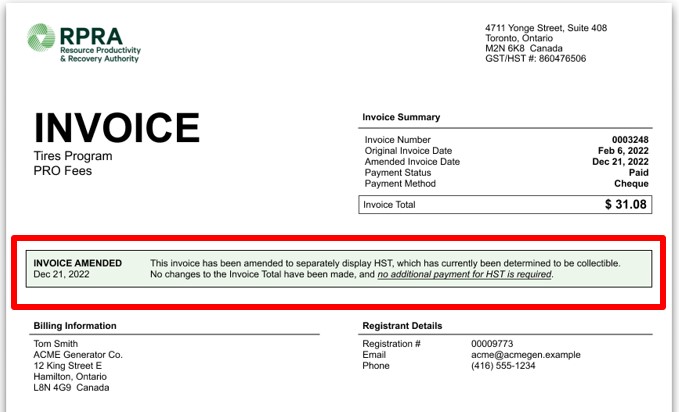
Invoices issued before January 1, 2023, were amended to reflect HST. Registrants can access amended invoices in their Registry accounts under the Invoices tab, where the HST amount and the amended invoice date are shown.
Important notes:
- On the amended invoices there have been no changes to the Invoice Total and registrants will not be required to pay any additional monies to RPRA for past invoices.
- Registrants may be able to claim input tax credits for the HST collected on RPRA fees, for both the amended invoices and new invoices issued January 1, 2023, onwards. However, RPRA is not in a position to provide tax advice and suggests you consult your internal or external accountants to seek their counsel.
- All new invoices issued effective January 1, 2023, will contain appropriate information identifying the amount of the HST and other relevant details. These invoices will also be displayed under the “Invoices” tab in a registrants’ Registry account.
-
Registrants can access past invoices in their Registry account under a new tab labelled “Invoices”. A banner will be displayed that highlights whether an invoice has been amended to include HST as well as the date the amended invoice was reissued. This will show on all invoices with an invoice date before December 21, 2022. See sample screenshot below.
-
Registrants can access past invoices in their Registry account under the “Invoices & Payments” tab. From here, registrants can view, download and pay their invoices.
See sample screenshot below:

-
RPRA has developed a library of resources to support Registry users navigate the online system and meet their regulatory requirements. RPRA consistently adds to this pool of resources based on upcoming requirements, emerging needs, and questions we receive from stakeholders.
View Registry resources for each program:
-
RPRA has developed an Excess Soil Registry Resources webpage to help users navigate the online system and complete common activities such as account creation, filing and searching for notices. Resources include step-by-instructions and walk-through videos.
-
Account admins can manage password resets for all active users in the account. Primary users are also able to manage password resets, but only for active users within the programs they are the primary user for. If secondary users require a password reset, they can reach out to the account admin or primary user to do so.
-
The account admin or primary user navigates to the program homepage of which the user requiring a password reset is enrolled in. The account admin or primary user then clicks their username at the top right of the page to show the drop-down list and selects Manage Users.
In the Active Users table, the account admin or primary user clicks Reset Password on the row for the user they want to reset the password for and clicks Confirm.
The user’s password has now been reset. They will receive an email with a password reset link.
Note: the password reset link will expire within 24 hours. If the link expires before the user creates a new password, the account admin or primary must click “Reset Password” again to restart the process.
See the FAQ: Who can reset passwords in the registry?
-
If you need to change an email address in your registry account, please contact the Compliance Team at [email protected]. Registry users cannot update email addresses themselves; this can only be completed by RPRA.
-
To request a refund for a payment made by credit card and direct debit, follow these steps:
- Log in to your registry account.
- Select the Program.
- Go to the Invoices & Payment tab.
- Scroll to the Invoices with Credit Balances table.
- Under Action click on Request Refund.
- Click on the green button showing the refund amount.
To request a refund for a payment made by a saved payment method (credit card or direct debit), follow these steps:
- Log in to your registry account.
- Select the Program.
- Go to the Invoices & Payment tab.
- Scroll to the Invoices with Credit Balances table Under Action click on Request Refund
- Check the box to Confirm your Attestation to the information.
- Click on the green button showing the refund amount.
To request a refund for a payment made by EDI, cheque or electronic bill payment, follow these steps:
- Log in to your registry account.
- Select the Program.
- Go to the Invoices & Payment tab.
- Scroll to the Invoices with Credit Balances table Under Action click on Request Refund
- Add your banking information as refunds will only be issued by EFT
- Check the box to Confirm your Attestation to the information.
- Click on the green button showing the refund amount.
Note: The Request Refund button is only available for invoices that have a negative balance.
If a registrant clicks the “Request Refund” button after a refund request has already been submitted, the registrant will see the following message: “A refund has already been requested for invoice 000XXXX on XX Date. We are currently processing your request.”
-
To pay multiple invoices at once, follow these steps:
- Log in to your registry account.
- Select the Program.
- On the program screen click Pay Now in the Total Unpaid Invoices box, located at the top right corner.
- Click the Pay Now button for saved payment methods or select Change Payment Method.
- Choose the payment method, then click Next.
- If the selected payment method is credit card or debit card, please enter your banking information or your credit card information, then click the Pay button.
- If the selected payment method is EDI, electronic bill payment, or cheque, please follow the payment instructions on-screen.
-
To view invoices with a credit balance by program, follow these steps:
- Log in to your registry account.
- Select the applicable Program.
- On the program screen go to the Invoices & Payment tab.
- Click on Outstanding Invoices tab.
- Scroll down to the Invoices with Credit Balances section to view invoices with credit balances.
-
Only account admins can designate an accounts payable (AP) user.
-
An accounts payable (AP) user is responsible for managing the financial aspects of a company’s registry account.
An AP user’s functionality includes:
- Accessing and paying invoices – View, download, and make payments for invoices.
- Managing saved payment methods – Add, update, or remove stored payment options.
- Modifying data across all programs – Modify program-related information as required for billing.
- Receiving billing and payment notifications – Receive email alerts about invoices, payments, and account balances.
- Communicating with RPRA regarding billing or payment questions – Act as the main contact for financial inquiries.
-
Yes, designating an AP User is required for account creation. This ensures financial responsibilities are clearly assigned.
-
Users must designate an accounts payable (AP) user during account set up.
To add an AP user during account set up, follow these steps:
- After adding the Business information and address, click Next.
- After entering the Account Admin information, scroll down.
- Enter the Account Payables User information.
- Check the box: ✅I hereby authorize this user to create/modify data. This confirms the AP User can modify data across all programs.
- Click Next
If you want to assign the account admin as the AP user, check the box labeled:
The Account Admin listed above is the Accounts Payable (AP) User.This will auto-fill the AP User section with the account admin’s information.
See FAQ: 7. What is an accounts payable (AP) user and what can they do in the registry?
-
Follow the steps below to add an AP user to an existing account:
- Log in to the Registry account.
- Go to the Manage Users
- Click on the Set Account Payable User
- Fill in the required details (e.g., name, contact info, etc.).
- Complete the Programs & User Access Levels section
- Check the box: ✅I hereby authorize this user to create/modify data. This confirms the AP user can modify data across all programs.
- Click Save
Note: The new AP user will receive an email invitation to create their password and gain access to the Registry account.
How to change an existing AP user:
- Log in to the Registry account.
- Navigate to the Manage Users
- Click on the Change Accounts Payable User button.
- To select an existing Registry user, type their name or email address in the search field
- Check the box: ✅ I hereby authorize this user to create/modify data. This confirms the AP User can modify data across all programs.
- Click
- To add a new user, click on “Add New User”
- Fill in the required details (e.g., name, contact info, etc.).
- Complete the “Programs & User Access Levels” section.
- Check the box: ✅✅ “I hereby authorize this user to create/modify data.” This confirms the AP user can modify data across all program.
- Click Save
-
RPRA invoices are due on receipt.
RPRA charges a monthly 1.5% late payment fee on outstanding invoices. Late payment fees accrue monthly until the original invoice is paid in full.
If a late payment fee is applied, registrants will receive an email notification, and a late payment fee invoice will be issued to their Registry account.
-
If changes are needed to delete a draft or in-progress notice (e.g., because the project is no longer proceeding or the notice was created in error), or if a final submission needs to be re-opened to address any errors or updates to the project information within 30 days of noticing the issue, contact the RPRA help desk: [email protected].
-
The regulation requires notices to be filed for three types of activities. For details on when notices may be required, please refer to the Ministry’s Handout on Excess Soil Registry:
1. Notice filings for excess soil from Project Areas that can be made by a Project Leader or Authorized Person and may require retaining a Qualified Person. These notices will be required to be filed before soil that will become excess soil is removed from the Project Area. There will be two fillings for each notice:
1. An initial filing before the soil is removed, which will require the following information to be provided:
-
- a description of the project and Project Area including the location of each property within the project area
- the contact information of the Project Leader, Operator or Authorized Person and the person responsible for transportation, and if applicable, the qualified person
- an estimated amount of the soil that will be generated broken down by quality standard
- a list of substances/materials that were added to the soil
- the location of temporary or final sites that the soil will be transported to
- details of the Reuse Site(s) where the soil will be moved to
- information on any peer review or certification processes if applicable
- and a declaration by the Project Leader.
- A final notice within 30 days after excess soil has been removed from the Project Area or temporary site which will require the following information:
- the amount of excess soil removed from the Project Area that was deposited at: a class 1 soil management site, a class 2 soil management site, a reuse site, a local waste transfer facility, and a landfilling site or dump
- the date on which the last load of excess soil was removed from the project area or temporary site
- a declaration by the Project Leader confirming that all requirements were followed related to the filing of the notice
The Project Leader or Authorized Person is required to ensure the notice filings that are no longer complete or accurate are updated within 30 days after the day the person becomes aware that the information is no longer complete or accurate.
Exemptions
Exemptions from filing a notice in the Excess Soil Registry can be found under Schedule 2 of the regulation.
The Project Leader, Operator or Authorized Person may file a notice after soil that will become excess soil has been removed from the project area if:
- conducting the required sampling and analysis at the project area is impractical
- the soil is removed from the project area and delivered to a temporary site to conduct the required sampling, and
- the Project Leader, Operator or Authorized Person makes sure the required sampling is conducted as soon as the soil is delivered to the temporary site
If soil is removed before a notice is filed in the Registry, the Project Leader, Operator, or Authorized Person is required to ensure that the notice is filed in the Registry before the soil that has become excess soil is transported from the temporary site to the final site.
- Notice filings for Residential Development Soil Depots can be made by an Owner, Operator, or Authorized Person. This notice will be required before excess soil is deposited on a residential development soil depot site.
The Owner or Operator of the Residential Development Soil Depot must ensure that the quality of the excess soil accepted and managed at the depot meets the applicable Excess Soil Quality Standards set out in the regulation. There will be two filings for each notice:
- An initial filing before the soil is received, which will require the following information to be provided:
- the site location
- the contact information of the Site Owner and Operator
- the project commencement date
- the estimated amount of soil (including inventory on-site)
- the site instrument identification
- and a declaration by the Site Owner or Operator.
- A final filling within 90 days of the depot closing indicating the date when the depot ceased operations, and a declaration by the Site Owner or Operator.
- Notice filings for Reuse Sites can be made by a Site Owner, Operator, or an Authorized Person. These apply to a Reuse Site that expects at least 10,000 m3 of excess soil to be deposited for an undertaking. There will be two filings for each notice:
- An initial filing before the excess soil is deposited, which will require the following information to be provided:
- the site location/property type
- the contact information of the Site Owner and Operator
- a description of the undertaking
- the applicable excess soil quality standards for the site
- the estimated amount of soil by quality standard
- the estimated dates when the first and last soil load will be deposited
- the site instrument identification
- and a declaration by the Site Owner or Operator.
- A final notice filing within 30 days after the final load of excess soil has been deposited at the Reuse Site which will require the following information:
- confirmation that all excess soil that will be reused for a beneficial purpose has been deposited at the reuse site
- the total amount of excess soil that was deposited
- the date the final load of excess soil was deposited
- and a declaration by the owner or operator.
The Site Owner or Operator is required to update notice filings that are no longer complete or accurate within 30 days after the day the person becomes aware that the information is no longer complete or accurate.
Exemption:
Reuse Sites that are part of an infrastructure undertaking are not required to file notices, even if they generate more than 10,000 m3 of excess soil.
-
-
Ontario Recycles was created in 2026 to keep the public informed about the circular economy and recycling in Ontario.
Ontario Recycles provides an overview of the province’s recycling programs that RPRA oversees for batteries, electronics, household hazardous waste, lighting, tires, and Blue Box materials, including where to recycle these materials using RPRA’s Where to Recycle map.